Quick Start
What the package includes, how to open the tool, and the fastest first bake.Supported Unity Versions
Only LTS versions are supported.
| Unity version | Built-in (BiRP) | Universal (URP) | High Definition (HDRP) |
|---|---|---|---|
| 6000.3 | ✕ | ✓ | ✓ |
| 6000.0 | ✕ | ✓ | ✓ |
| 2022.3 | ✕ | ✓ | ✓ |
Non-LTS versions, as well as alpha, beta, tech, or preview versions, are not supported.
Wireframe FX Studio is a wireframe toolkit for Unity that combines baking, runtime rendering, and GPU-driven effects in one workflow.
If you are new to the package, do not start with the advanced effect stack. First make sure you can bake one object successfully.
Workflow At A Glance
Use this table when you are not sure which mode to try first.
| Mode | Fastest Start | Animated GPU Effects | Fullscreen Workflow | Best Use |
|---|---|---|---|---|
| Simple | Yes | No | No | First bake and static overlay setup |
| Advanced | Good | Yes | No | Runtime line and point rendering with compute effects |
| Texture Overlay | Good | No | No | Baked texture-based wireframe result |
| Post Process | Good | No | Yes | Depth-based fullscreen wireframe treatment |
Start with Simple if this is your first test. Use Advanced when you need animated graph-based effects. Use Post Process only when you want a screen-space result, and remember that transparent objects are less reliable because they usually do not write depth.
What Is Included
The package includes:
- 4 bake modes
- 8 wireframe effects
- multiple visual modes per effect
- projector support
- mesh and skinned mesh support
- bake-to-asset workflow
- runtime graph-based rendering
Open The Tool
Open:
Tools > Wireframe FX Studio
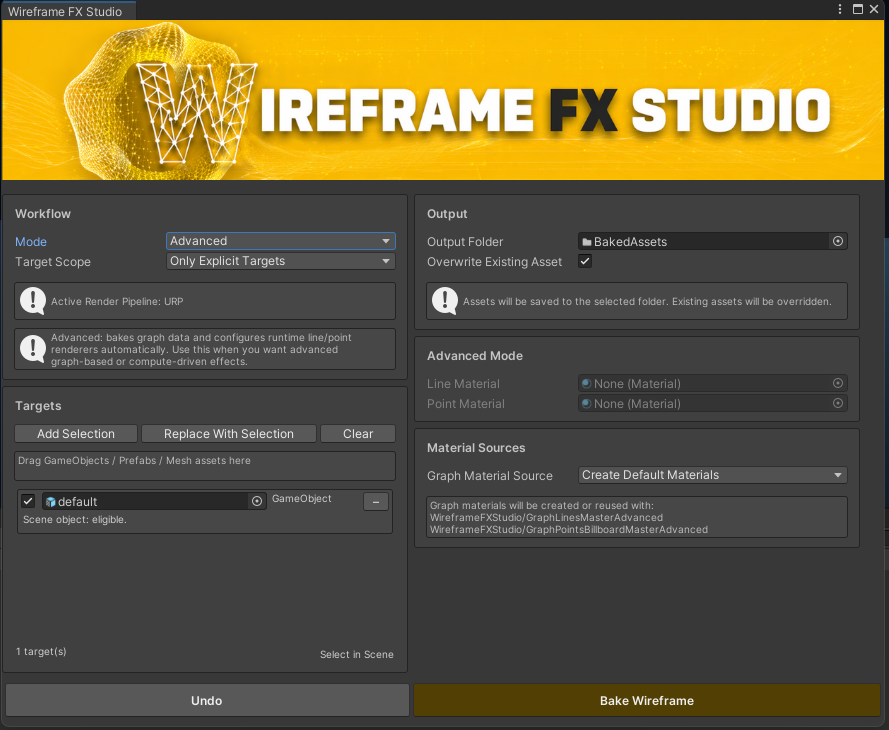
Main Wireframe FX Studio window. This is where you choose the bake mode, build the target list, set the output folder, and run the bake.
First Recommended Test
Use this path for the fastest first result:
- Select one object with a valid
MeshFilterorSkinnedMeshRenderer. - Open Wireframe FX Studio.
- Choose Simple mode.
- Add the selected object to the Targets list.
- Set a valid Output Folder inside
Assets. - Keep Create Default Materials enabled.
- Click Bake Wireframe.
This is the easiest way to confirm that the package is working in your project before moving to compute effects or projector setups.
What To Read Next
- Go to Bake Modes if you are not sure which workflow to use.
- Go to Bake Tool Workflow if you want to understand targets, output assets, and material sources.
- Go to Effects & Runtime when you are ready for graph-based rendering, projector workflows, or compute-driven animation.